Does PDF conversion require an internet connection?
No. SourceShelf performs PDF extraction and OCR locally.
Local PDF conversion
Drop in a text PDF or a scanned document. SourceShelf extracts readable content, uses local Apple OCR when needed, and creates a Markdown file you can inspect, edit, archive, or add to an AI knowledge pack.
Product demonstration
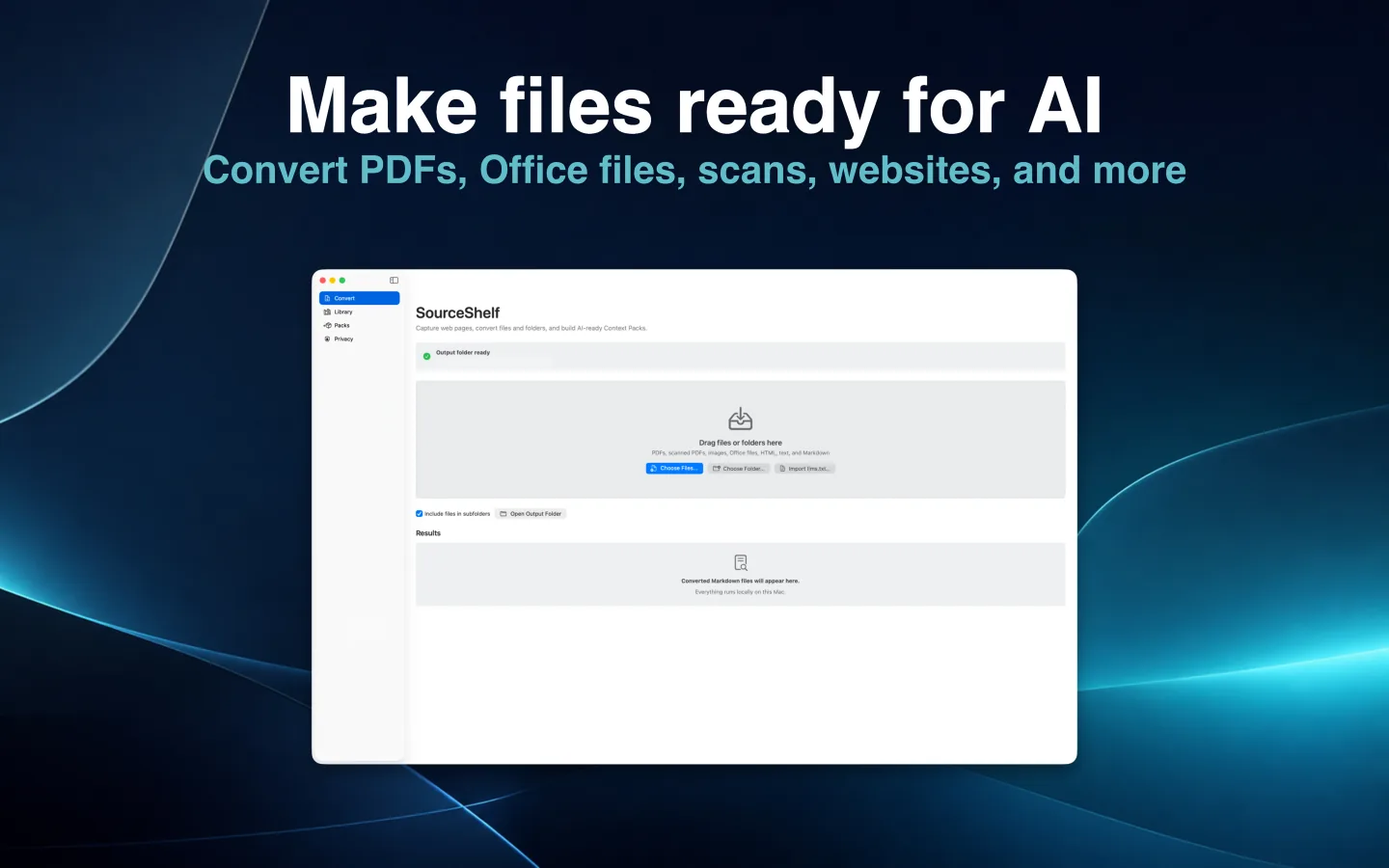
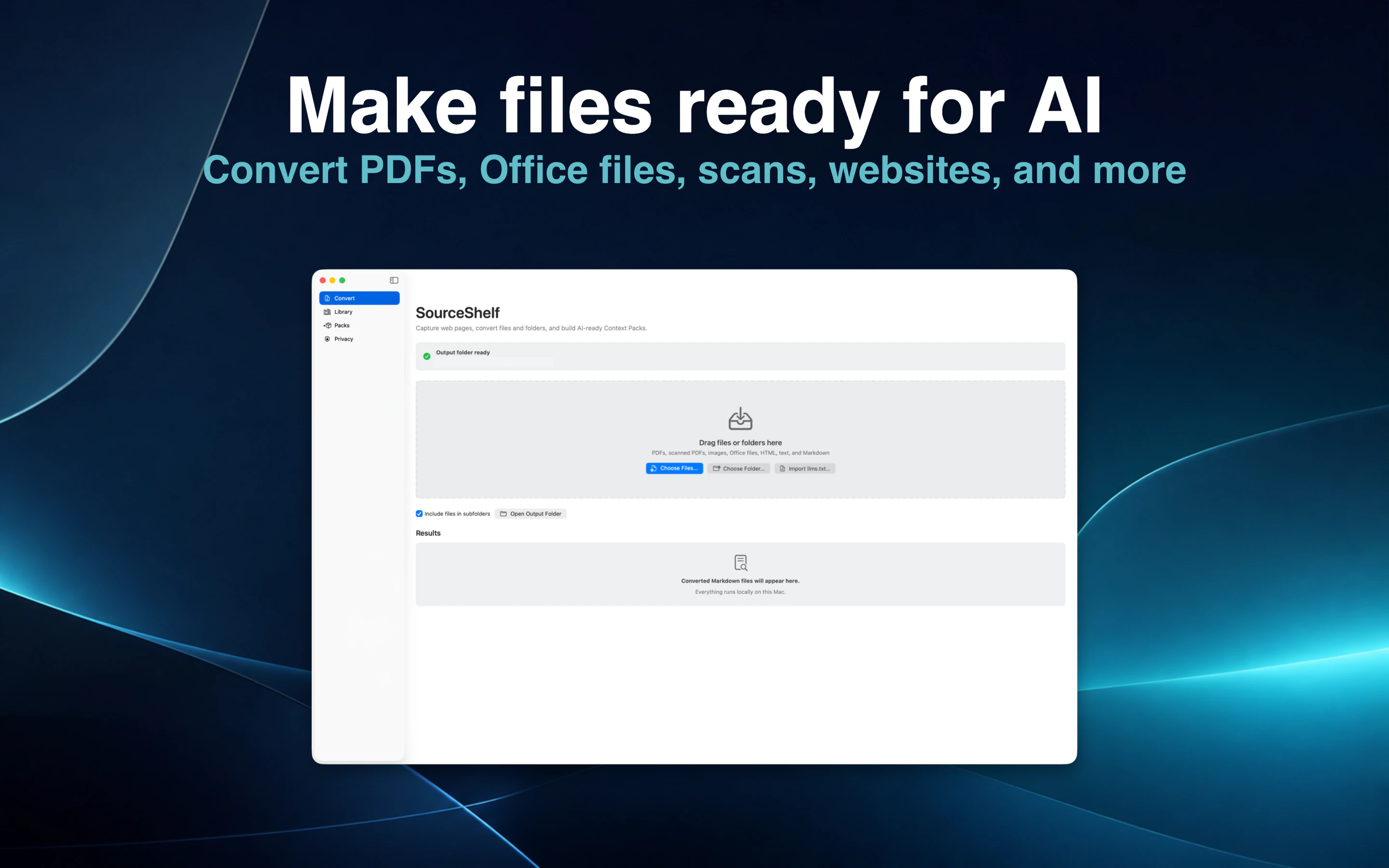
Drop a text PDF or scanned PDF onto the SourceShelf Convert screen.
SourceShelf extracts selectable text or uses Apple's local document recognition when usable text is unavailable.
Inspect the rendered result and Markdown source, then correct complex layouts or low-quality OCR when needed.
Open the normal Markdown file in another editor or add it to a saved knowledge pack.
SourceShelf handles PDFs that already contain selectable text and image-only PDFs that require OCR. When no usable text is available, it uses Apple's local document-recognition technology on your Mac.
The document does not need to be sent to an online converter or external OCR service.
SourceShelf builds a semantic representation of the document before rendering Markdown. Where the source allows it, the result retains useful elements such as headings, paragraphs, lists, tables, code, quotations, captions, images, and page boundaries.
Complex layouts and imperfect scans can still require correction, but the result is designed to be readable, inspectable, and portable.
Generated Markdown is written to the output folder you choose. Open it in your preferred Markdown editor, reveal it in Finder, or use it with other tools.
SourceShelf detects external edits and regenerates its local semantic cache without overwriting the changes you made.
Add converted reports, papers, manuals, and scans to a focused SourceShelf Pack. On supported Apple Intelligence devices, Ask This Pack can answer questions using that selected Pack as context. You can also export the Pack as portable AI context or allow a compatible AI client to search it through read-only MCP access.
How it works
Drag a PDF onto SourceShelf or select multiple files and folders.
SourceShelf extracts selectable text or runs local OCR when required.
Inspect the result, edit it externally, or add it to a saved knowledge pack.
Common questions
No. SourceShelf performs PDF extraction and OCR locally.
Yes. SourceShelf can use local Apple OCR when a PDF has no selectable text.
No. OCR and document reconstruction can require correction, particularly with low-quality scans or complex multi-column layouts. SourceShelf preserves useful structure where extraction allows it.
Yes. The result is a normal Markdown file that opens in your configured editor.
Convert locally, review the result, and decide where the finished source belongs.